How to Choose and Use Pipeline Modes
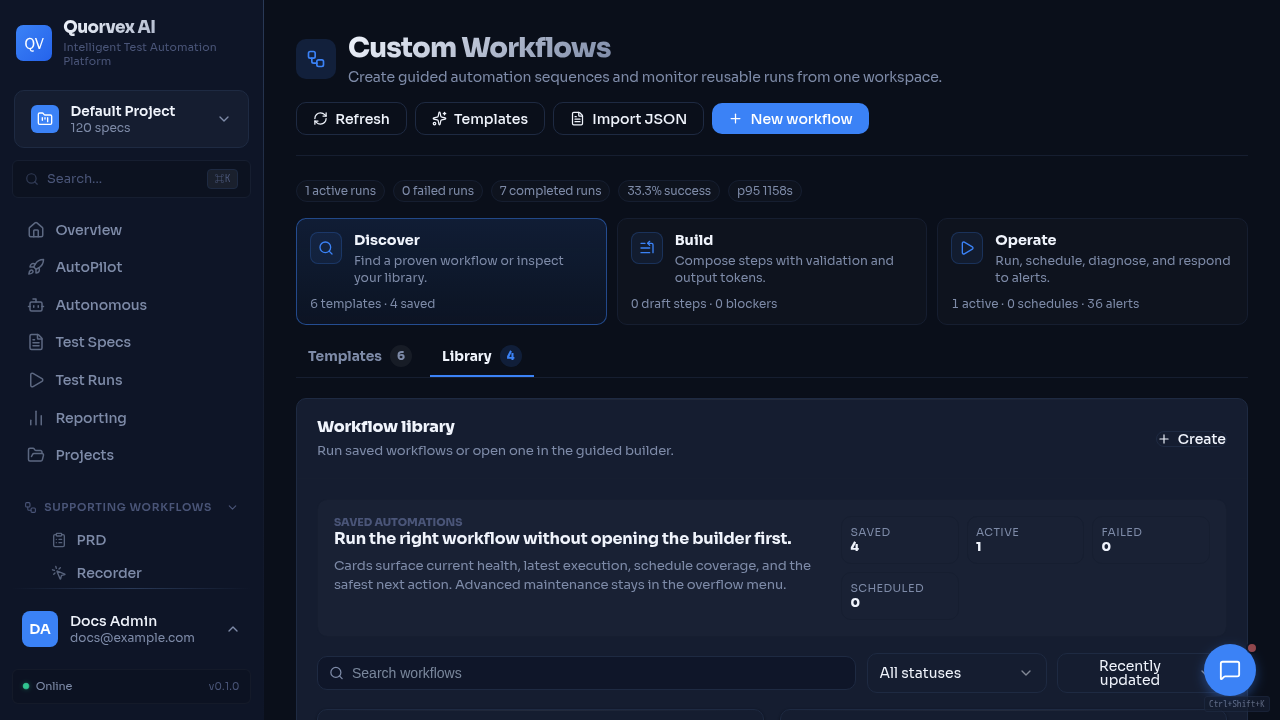
Workflow monitor showing pipeline execution and diagnostics.
Select the right pipeline mode for your test generation scenario and configure it for optimal results.
Prerequisites
- Quorvex AI installed and running (
make setupcompleted) - A test spec written in markdown (see Writing Specs)
- AI credentials configured in
.env
Step 1: Understand the Available Modes
| Mode | Command | Healing | Best For |
|---|---|---|---|
| Default (default) | python orchestrator/cli.py spec.md | 3 attempts | Most tests |
| Hybrid | python orchestrator/cli.py spec.md --hybrid | 3 + 17 attempts | Complex/flaky pages |
| Standard (legacy) | python orchestrator/cli.py spec.md --standard-pipeline | 7 attempts | Legacy compatibility |
| PRD | python orchestrator/cli.py prd.pdf --prd | 3 attempts | Bulk from PRD document |
| Exploration | python orchestrator/cli.py --explore URL | N/A | App discovery |
| Skill | python orchestrator/cli.py spec.md --skill-mode | N/A | Network interception, multi-tab |
Step 2: Use the Pipeline (Default)
The native pipeline is recommended for most test generation tasks. It uses live browser interaction at every stage.
How it works:
- Planning -- AI opens a browser, navigates to the target URL, explores the page, and builds a plan with real selectors from the live DOM.
- Generation -- AI opens a fresh browser, reads the spec and plan, then writes Playwright test code while interacting with the live application.
- Execution -- The generated test runs via
npx playwright test. If it passes, the pipeline is done. - Healing (up to 3 attempts) -- If the test fails, the healer uses Playwright
test_runplus diagnostic/devtools MCP tools to diagnose and fix the issue.
Tip
Use this for standard functional tests: login flows, form submissions, navigation, and assertions.
Step 3: Switch to Hybrid for Complex Tests
If native healing's 3 attempts are insufficient, enable hybrid mode for up to 20 total iterations:
Hybrid extends native healing with the Ralph healing loop:
- Phase 1 (attempts 1-3): Healing with browser debug tools
- Phase 2 (attempts 4-20): Ralph loop with full test output, plan context, and spec analysis
Adjust the total iteration budget:
Tip
Use hybrid for pages with dynamic content, animations, race conditions, or tests that consistently exhaust native healing's 3 attempts.
Step 4: Generate Tests from a PRD
Process a PDF Product Requirements Document to generate test specs and code:
# Process entire PRD
python orchestrator/cli.py requirements.pdf --prd

# Process a specific feature
python orchestrator/cli.py requirements.pdf --prd --feature "User Login"

# Split a multi-test spec into individual files
python orchestrator/cli.py specs/prd-feature.md --split
The PRD pipeline:
- Parses the PDF and identifies features
- Stores chunks in the vector store for retrieval
- Generates test specs using RAG with the Planner
- Runs each spec through the native generator and healer
Use the PRD page in the dashboard to upload PDFs with a visual interface.
Step 5: Discover Apps with AI Exploration
Explore a web application autonomously without a pre-written spec:
# Basic exploration
python orchestrator/cli.py --explore https://app.example.com

# With strategy and limits
python orchestrator/cli.py --explore https://app.example.com \
  --strategy breadth_first \
  --max-interactions 100

# Authenticated exploration
LOGIN_EMAIL=user@example.com LOGIN_PASSWORD=secret \
python orchestrator/cli.py --explore https://app.example.com \
  --login-url https://app.example.com/login
Exploration strategies:
| Strategy | Behavior |
|---|---|
goal_directed (default) | Prioritizes meaningful user flows and actions |
breadth_first | Visits as many pages as possible before going deep |
depth_first | Follows each flow to completion before the next |
After exploration, generate requirements and RTM:
python orchestrator/cli.py --generate-requirements --from-exploration SESSION_ID
python orchestrator/cli.py --generate-rtm --project-id my-project
Step 6: Use Skill Mode for Advanced Scenarios
Generate Playwright scripts for network interception, multi-tab workflows, or performance testing:
# Generate a skill script from a spec
python orchestrator/cli.py specs/my-test.md --skill-mode

# Execute a skill script directly
python orchestrator/cli.py --run-skill /path/to/script.js

# With options
python orchestrator/cli.py --run-skill /path/to/script.js \
  --skill-timeout 60000 \
  --skill-headless
Step 7: Use Smart Check to Skip Regeneration
Before running any pipeline, the system checks for existing generated code:
- Reuse -- if valid test code exists and passes, skip the pipeline entirely
- Heal -- if existing code fails, jump to healing (skip planning and generation)
- Regenerate -- if no code exists or healing fails, run full pipeline
Force a specific existing test file:
Common Options
These flags work with all pipeline modes:
| Flag | Purpose |
|---|---|
--browser chromium\|firefox\|webkit | Browser engine (default: chromium) |
--project-id ID | Project for memory isolation |
--no-memory | Disable memory system |
--run-dir PATH | Custom directory for run artifacts |
Decision Matrix
| Scenario | Recommended Mode |
|---|---|
| New test from a simple spec | Default |
| Test keeps failing after 3 healing attempts | Hybrid (--hybrid) |
| Generate tests from a PDF PRD | PRD (--prd) |
| Discover what an app does | Exploration (--explore) |
| Need network mocking or multi-tab | Skill (--skill-mode) |
| Reproduce a legacy run | Standard (--standard-pipeline) |
Verification
Confirm the pipeline ran correctly:
- Check the CLI output for
status: passed - Inspect run artifacts in
runs/<timestamp>/(plan.json, export.json, status.txt) - Run the generated test directly:
- In the dashboard, check the Runs page for stage-by-stage progress
Related Guides
- Writing Specs -- the spec format all pipelines consume
- Exploration and Requirements -- end-to-end discovery pipeline
- PRD to Tests -- detailed PRD pipeline usage
- Troubleshooting -- common pipeline issues