How to Run Regression Batches
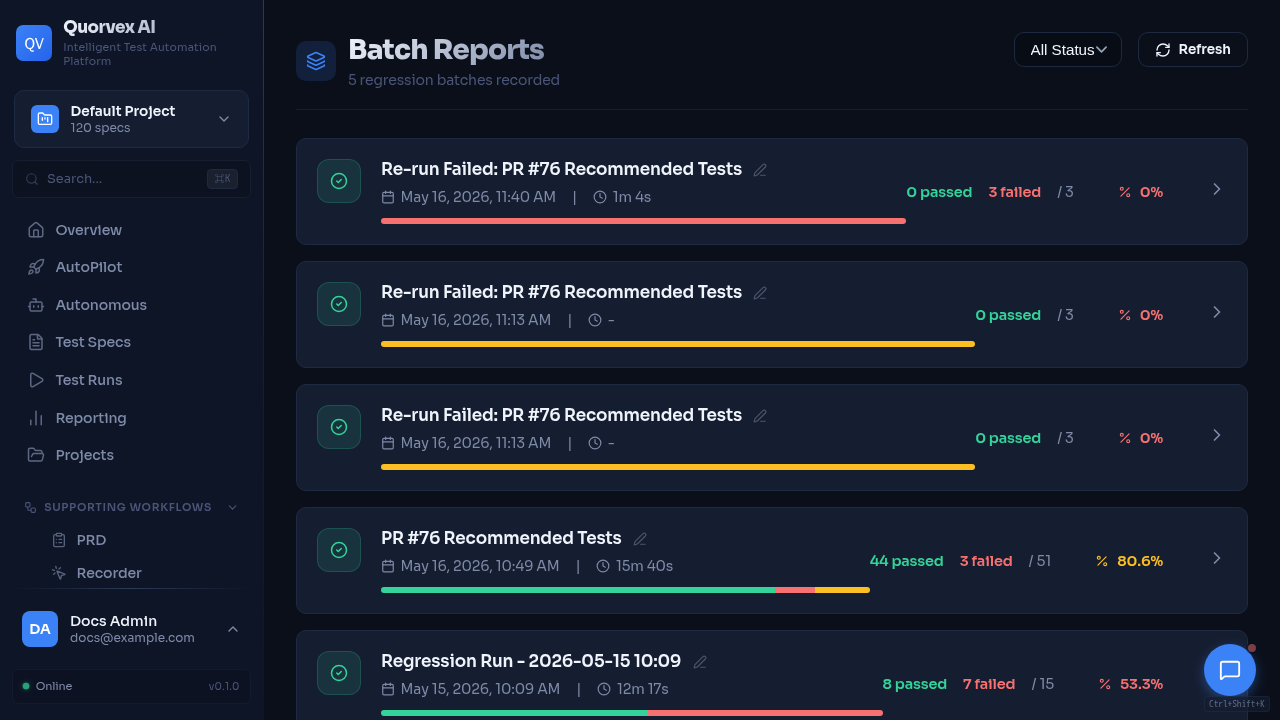
Regression batch reports list in the Quorvex dashboard.
Group multiple test specs into batches for regression testing, track results, and export reports.
Prerequisites
- Quorvex AI installed and running (
make dev) - At least one test spec in your project
- Tests previously generated (the pipeline runs during batch execution)
Step 1: Create a Regression Batch
Via Dashboard
- Navigate to Regression in the dashboard (
/regression) - Click New Batch
- Enter a batch name (e.g., "Sprint 42 Regression")
- Select the specs to include in the batch
- Click Create and Run
Via API
# Create a batch with specific specs
curl -X POST http://localhost:8001/regression/batches \
  -H "Content-Type: application/json" \
  -d '{
    "name": "Sprint 42 Regression",
    "spec_ids": ["spec-1", "spec-2", "spec-3"],
    "project_id": "your-project-id"
  }'
Step 2: Monitor Batch Progress
The dashboard auto-refreshes batch status. Each spec in the batch runs through the pipeline (plan, generate, heal) and reports pass/fail/error.
Via Dashboard
- Navigate to Regression
- Click on the active batch
- View real-time status for each spec: running, passed, failed, error
Via API
# Get batch details with all run results
curl http://localhost:8001/regression/batches/BATCH_ID

# Refresh batch statistics (recalculate pass/fail counts)
curl -X PATCH http://localhost:8001/regression/batches/BATCH_ID/refresh
Step 3: Review Results
After the batch completes, review aggregated results:
- Pass count -- specs that generated passing tests
- Fail count -- specs where generated tests failed after healing
- Error count -- specs that encountered pipeline errors
Click individual runs to see detailed logs, generated code, and failure traces.
Step 4: Export Results
Export batch results in your preferred format:
Via Dashboard
- Click the Export button on the batch detail page
- Choose format: HTML, JSON, or CSV
Via API
# Export as HTML report
curl "http://localhost:8001/regression/batches/BATCH_ID/export?format=html" -o report.html

# Export as JSON
curl "http://localhost:8001/regression/batches/BATCH_ID/export?format=json" -o report.json

# Export as CSV
curl "http://localhost:8001/regression/batches/BATCH_ID/export?format=csv" -o report.csv
The HTML report includes detailed results for each spec, with pass/fail status, execution time, and error messages.
Step 5: Filter and Search Batches
List batches with filtering:
# Filter by status
curl "http://localhost:8001/regression/batches?status=completed&project_id=your-project-id"

# Filter by date range
curl "http://localhost:8001/regression/batches?date_from=2026-01-01&date_to=2026-02-01&project_id=your-project-id"
Step 6: Sync Results to TestRail (Optional)
If TestRail integration is configured, push batch results as a test run:
# Preview what will be synced
curl http://localhost:8001/testrail/your-project-id/sync-preview/BATCH_ID

# Push results
curl -X POST http://localhost:8001/testrail/your-project-id/sync-results \
  -H "Content-Type: application/json" \
  -d '{"batch_id": "BATCH_ID"}'
See Integrations for TestRail setup.
Step 7: Schedule Recurring Batches
Automate regression batches on a cron schedule. See Scheduling for configuration.
Verification
Confirm the batch completed:
- Batch status shows
completedin the dashboard - Pass/fail/error counts match expectations
- Exported HTML report opens in a browser with all results
- Individual run artifacts exist in
runs/<run-id>/
Related Guides
- Scheduling -- automate batch execution on a cron schedule
- Integrations -- sync results to TestRail
- Writing Specs -- create specs to add to batches
- Pipeline Modes -- understand how each spec is processed